 Premmerce
WooCommerce Performance Optimization: 12 Fixes in Order
WooCommerce performance optimization is mostly about doing the right fixes in the right order. A slow store usually has one or two real bottlenecks (a cheap host, a page cache that can’t cache anything, a catalog with thousands of variations) and a long tail of tweaks that barely matter. This guide goes through the fixes in the order they tend to pay off, starting with measuring, so you know which one your store needs.
We make plugins for WooCommerce stores with large catalogs, including Premmerce Performance Optimizer, so the WooCommerce settings below are checked against the current release (11.1) rather than remembered.
1. Measure before you change anything
Pick three pages and measure them before and after every change: the homepage, a category page with a full grid of products, and a single product page (a variable one, if you sell them). Then measure the cart and checkout separately, because they can’t be cached and are often the slowest pages on the site.
- PageSpeed Insights shows how real visitors experience the page (the Core Web Vitals) and what slows the first view. Google’s targets are a Largest Contentful Paint under 2.5 seconds, Interaction to Next Paint under 200 milliseconds and Cumulative Layout Shift under 0.1 (web.dev).
- Time to first byte (TTFB) is how long the server takes to start sending the page. If it’s over 800 milliseconds on an uncached page (web.dev’s line for a good TTFB), the problem is on the server: hosting, PHP, the database or a plugin. No amount of image compression fixes that.
- Query Monitor shows how many database queries a page runs, which plugin runs them and how long they take. If a category page runs thousands of queries, something is loading data one product at a time.
Run each test three times and take the middle result. A single run is noise.
2. Hosting and PHP
If TTFB is slow on every page, start here. WooCommerce runs PHP and database queries on every page that isn’t cached, and every cart and checkout page is never cached. That makes it far more sensitive to the server than a blog.
- Run a current PHP version. Each major PHP release has been meaningfully faster for WordPress than the last. Your host’s control panel usually lets you switch, and WooCommerce’s Status screen (WooCommerce > Status) shows which version you’re on now.
- Avoid crowded shared hosting once you have regular traffic. Look for a host that offers a persistent object cache (Redis or Memcached) and lets you control the page cache rules, because you’ll need both below.
- Keep the database close to PHP. On managed WordPress hosts this is a given. On your own server, a database on a different machine or region adds delay to every one of those hundreds of queries.
3. Page caching that leaves the cart alone
A page cache saves a finished copy of each page and serves it without running PHP. For product and category pages, it’s the biggest single speedup there is. The catch with WooCommerce is that some pages are personal and must never be cached.
WooCommerce’s own performance guidance is to exclude the cart, checkout and my account pages from the page cache. Most good caching plugins and hosts do this automatically for WooCommerce, but check:
- the Cart, Checkout and My account pages are excluded
- visitors with a
woocommerce_items_in_cartorwp_woocommerce_session_cookie get an uncached page, so their cart count and prices are right - if you show different prices per visitor (currencies, wholesale prices, user roles), the cache varies by that too, or skips those pages
The last point is where most “my cache shows the wrong price” problems come from. If you run a currency switcher, check with its developer how it works with your cache before you go live.
4. A persistent object cache
WordPress keeps the results of database lookups in an object cache, but by default that cache only lasts for one page load. A persistent object cache (Redis or Memcached) keeps those results between requests, so the next visitor doesn’t pay for the same queries again.
This helps exactly the pages a page cache can’t: cart, checkout, my account, logged-in customers and the admin. If your host offers Redis, turn it on and install the drop-in they recommend. It’s often the single biggest improvement for a store with many logged-in customers, such as a wholesale store.
5. Switch to high-performance order storage (HPOS)
WooCommerce used to store orders as WordPress posts, mixed in with your pages and products. High-performance order storage (HPOS) moves them to their own tables, which makes order searches, the orders screen and checkout faster as the order count grows. It’s the default for new stores, but stores that started before late 2023 may still be on the old storage.
Check under WooCommerce > Settings > Advanced > Features:
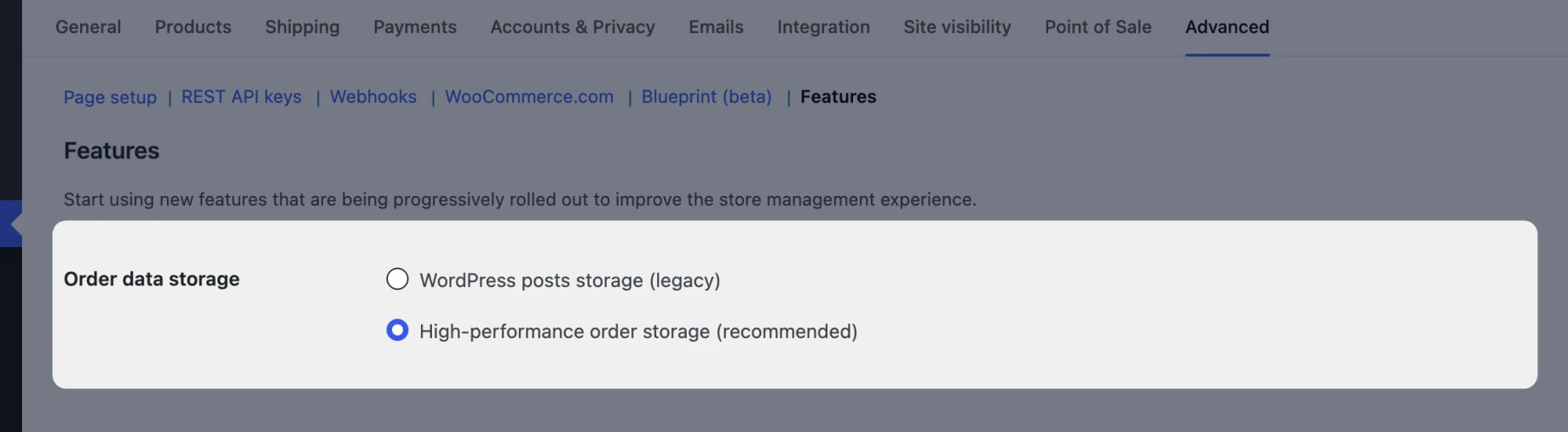
If WordPress posts storage (legacy) is selected, WooCommerce lists any active plugin that hasn’t declared it works with HPOS, and blocks the switch until each one does or is deactivated. Update those plugins first. With HPOS on and a persistent object cache in place, also try HPOS Data Caching on the same screen, which caches order data between requests.
WooCommerce’s HPOS documentation covers the switch, including running both storages side by side while you check.
6. Clean up sessions, transients and scheduled actions
These three tables quietly grow on busy stores:
- Customer sessions. Every visitor with a cart gets a session row. WooCommerce > Status > Tools has Clear customer sessions, which empties every cart, so run it at a quiet time or not at all if sessions expire normally.
- Transients. Short-term cached data. The same Tools tab has Expired transients, which is safe to run any time.
- Scheduled actions. WooCommerce and many extensions queue background jobs in Action Scheduler (WooCommerce > Status > Scheduled Actions). Thousands of Failed or Pending actions point to a broken extension or a cron that isn’t running. Fix the cause rather than just deleting them.
On the Features screen, Deferred emails sends order emails in the background through Action Scheduler instead of during checkout, so the customer doesn’t wait for your mail server.
7. Cart fragments
WooCommerce’s cart fragments script keeps the mini-cart count up to date by asking the server for it, which means one uncached request on page load. WooCommerce now only loads it where its Cart widget is used, but many themes still load it on every page. If your theme does and you don’t show a mini-cart, a performance plugin can turn it off. If you do show one, leave it: a cart count that’s wrong costs more than the request.
8. Images
Product photos are usually the heaviest part of a category page.
- Upload images at the size your theme displays them, not straight from the camera.
- Serve WebP or AVIF. Most image optimization plugins and CDNs convert on the fly.
- Let WordPress lazy-load images below the fold, and make sure the main product image above the fold is not lazy-loaded, because that delays the Largest Contentful Paint.
- If you change your theme’s image sizes, run Regenerate shop thumbnails from WooCommerce > Status > Tools.
9. Fewer and lighter plugins
Every active plugin loads code on every page, and some run database queries on every page too. Use Query Monitor’s Queries by Component view on a category page to see which plugins run the most queries, and question anything that runs on pages where it isn’t needed. A related products plugin that queries on the cart page, or a popup plugin that loads on checkout, is common.
Combining or minifying CSS and JavaScript helps the front end, but test checkout carefully afterwards: payment scripts are the usual casualty.
10. Big catalogs: products, attributes and variations
Stores with thousands of products, dozens of attributes or products with many variations hit limits that small stores never see. Category pages and product pages load the same product data several times over, attribute lists are rebuilt on every request, and a variable product page loads every variation in full.
We built Premmerce Performance Optimizer for these stores. It adds a Performance page under the Premmerce menu with three settings, all on by default:
- Cache menus saves each rendered menu to a file cache, per menu location and per WPML language, so large mega-menus aren’t rebuilt on every page. The cache clears when you save a menu, change menu locations or switch theme, and there’s a Clear cache button. Because the cached menu is the same on every page, the current-page highlight is added back in the browser.
- Optimize WooCommerce keeps each product it loads for the rest of the page load, so the same product isn’t rebuilt every time a template, widget or plugin asks for it (it doesn’t do this during checkout), and keeps WooCommerce’s attribute list in the object cache.
- Optimize Variable Products loads variations for the add-to-cart form in a lighter way, reading each variation’s data in one go instead of loading every variation as a full product.
To be fair to WooCommerce: recent versions (11.1 at the time of writing) have an experimental Cache Product Objects feature on the Features screen that does much the same as the first half of Optimize WooCommerce. If you use it, the menu and variation settings are where Performance Optimizer still adds something. Performance Optimizer is a premium plugin; pricing is on the product page.
Two other big-catalog habits:
- Rebuild the product lookup tables (WooCommerce > Status > Tools > Product lookup tables) after a large import. WooCommerce uses them for price sorting and filtering, and stale ones make those queries slower.
- Keep filtered URLs out of the crawl. Layered navigation can create thousands of filter combinations, and search engine bots crawling all of them put real load on the server. Our guide to the best permalink structure for WooCommerce covers which URLs to keep indexable.
11. Search and filters
Default WordPress search runs a LIKE query across every post, which gets slow on large catalogs and doesn’t search SKUs. A product search plugin with its own index, or a hosted search service, takes that load off the database. For filters, prefer one that works from WooCommerce’s lookup tables and attribute terms rather than loading every product. We wrote up the options in the best WooCommerce search plugins and filtering by attribute.
12. Keep it fast
Performance slips back as plugins get added and the catalog grows. Re-run your three-page test after every new plugin and every major WooCommerce update, and look at the cart and checkout timings once a month. If you want to see how far WooCommerce itself scales, we tested an online store with 500,000 products.
Where to start with WooCommerce performance optimization
If you only do three things: move to hosting with a persistent object cache, set up a page cache that excludes the cart and checkout, and switch to HPOS. Those fix the most stores. Then measure again, and if category and product pages on a large catalog are still slow, try Performance Optimizer for menus, attributes and variations.
Comments

Ready to Get Started?
Join over 100,000 smart shop owners who use Premmerce plugins to power their WooCommerce stores.
Get started