 Premmerce
 Best Custom Permalink Plugins for WordPress and WooCommerce (2026)

A custom permalink plugin lets you change how WordPress and WooCommerce build their URLs, going beyond the built-in settings to remove bases like /product/ and /product-category/ and set up automatic redirects. For WooCommerce and eCommerce stores, the best option is WooCommerce Permalink Manager: it strips those WooCommerce bases, adds automatic 301 redirects, and holds up on stores with 100,000+ products. If you run a standard WordPress site, the native Settings > Permalinks options cover most of what you need.
Your site’s URLs are important because they can help users understand your pages better and make your site more intuitive to navigate. User experience goes hand in hand with SEO to help your site rank well.
Semantic URLs – URLs that explain their destination before you click on them – are easier to trust, so when users see them shared on social media and embedded in the content on third-party websites you use for link building, they’re more likely to click on them. Given these benefits, it’s worth paying attention to the structure of your site’s permanent links or permalinks.
WordPress’s default permalink options are okay but not great. If you’re looking to create descriptive, semantic permalinks that visualize your site’s structure, you’ll need a WordPress plugin that allows for customization. In this post, we explore the top four custom permalink WordPress plugins that you can use to create better URLs for your WordPress site or WooCommerce store.
Permalink plugin comparison table
| Plugin | Best For | Key Capability | Price (from) |
|---|---|---|---|
| WooCommerce Permalink Manager | WooCommerce & eCommerce stores | Removes /product/ and /product-category/ bases, automatic 301 redirects, scales to 100k+ products, WPML/Polylang support | From $49.99 (single site) |
| Permalink Manager Pro | General WordPress sites (all post types) | Full permalink control across posts, pages and taxonomies, plus custom fields in URLs; perpetual license, optional renewal for updates | From €49 (two sites) |
| Custom Permalinks for WooCommerce | Individual post, page, tag & category URL changes | Changes the URL of individual posts, pages, tags and categories (not whole URL structures); Pro adds custom taxonomies and support | $79 (single site) |
What are WordPress permalinks?
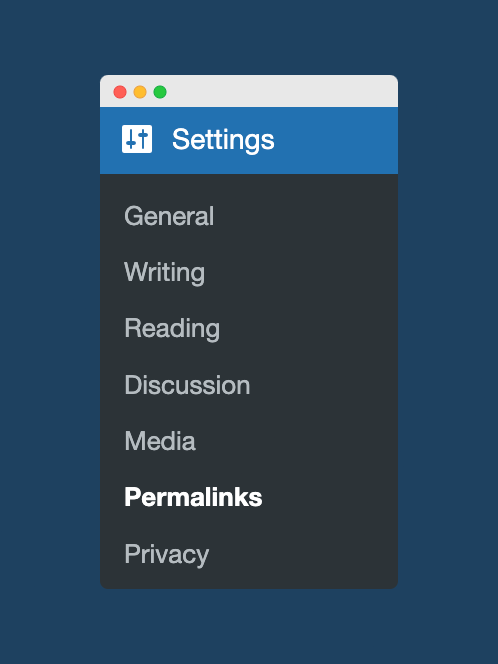
WordPress permalinks are the permanent URLs of individual posts and pages on your website. Every page on your site (including posts, pages, and archive pages) has its own permalink. Below you can see examples of simple permalinks for an archive page and a post page:
https://premmerce.com/blog/
https://premmerce.com/woocommerce-url-structure/
WordPress generates default permalinks for every post, page, and archive page on your site. There will even be a unique permalink for pages such as the 404 error page. You can access WordPress’s permalink settings under Settings → Permalinks.
How do I change permalinks in WordPress?
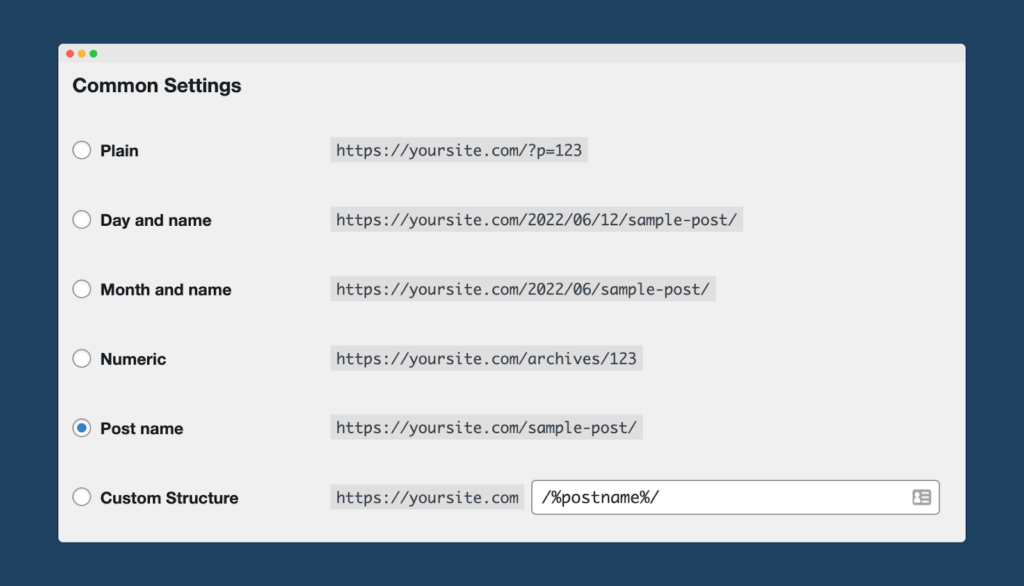
WordPress allows some limited options for customizing your permalinks. You can control the permalink structure of posts, pages, and archive pages on your WordPress site using the settings at WordPress > Settings > Permalinks > Optional. There are various options for how you display your permalinks – as standard, you can include the date or month the post was published, an auto-generated numeric ID, or you can use the post name as the slug of the post.
Most WordPress sites will use the /%postname%/ custom structure for posts and pages. This results in a “pretty permalink” that will have the structure of https://yoursite.com/sample-post/, where ‘sample-post’ represents the post’s title separated by dashes. In this example, /sample-post/ is the slug of the post. This is the most common permalink structure used by WordPress sites. You can see how this structure is selected in your site’s WordPress permalink options below:
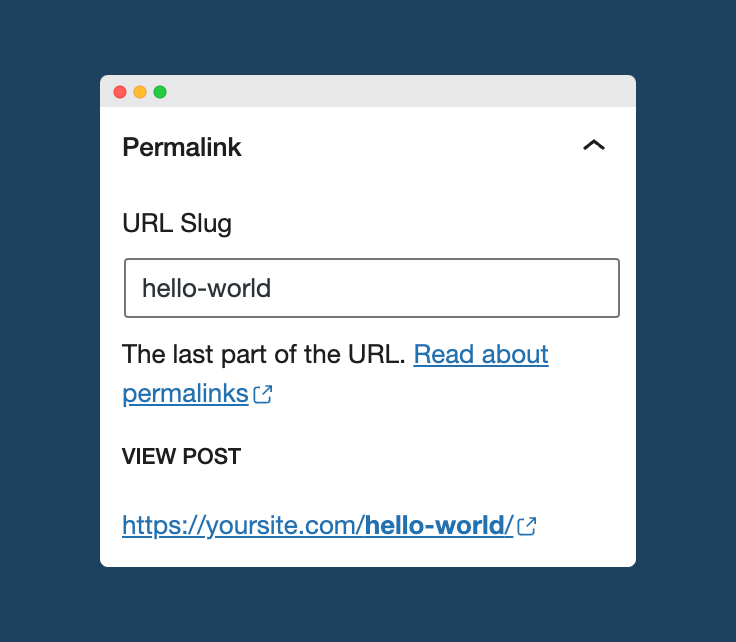
You can edit permalinks post-by-post in the WordPress editor. It’s good SEO practice to include your target keyword at the start of your permalink, or even just make the permalink the target keyword:
WooCommerce’s default permalink structure
When it comes to products in a WooCommerce store, you can set your product permalink bases under WordPress > Settings > Permalinks > Product Permalinks.
Default: If you’re not using pretty permalinks, you will have to use the “default“ option that creates WooCommerce URLs based on your product ID, such as:
https://yoursite.com/?product=136/
This doesn’t look especially professional, and also doesn’t give people using your site any real sense of what the link they are clicking on is, meaning they will be less likely to click on it. Fortunately, WooCommerce has a number of different options for how you can display your product page URLs using pretty permalinks, making use of the different permalink bases:
Product base: The product base by default uses the base /product/, e.g.:
https://puffcoffee.com/product/spirit-lifter-blend/
Shop base: The shop base uses the shop page name, which by default is /shop/, e.g.:
https://puffcoffee.com/shop/spirit-lifter-blend/
Shop base with category: This uses the shop page name first, then adds the product category name:
https://puffcoffee.com/shop/coffee/spirit-lifter-blend/
Custom base: This option lets you set custom text before the product name:
https://puffcoffee.com/buy-coffee/spirit-lifter-blend/
How to change permalinks in WooCommerce?
WooCommerce does let you edit permalinks a little bit by default. You can edit /product-category/ or /product/ to be anything else with default WooCommerce. However, you cannot remove it completely – there must be some text there.
If you change the permalink, WooCommerce will change the URL. Imagine you are migrating your eCommerce store from Shopify to WooCommerce. Shopify uses a default permalink base of /products/ for all products in your store. For example, here is how the default product URL looks for Cardews of Oxford, an eCommerce site built with Shopify, for their product Oxford breakfast tea:
https://cardewoxford.co.uk/products/oxford-breakfast/
In WooCommerce, the default base is /product/, as we have already seen, so if Cardews were to migrate their site to WooCommerce, the new default URL for their Oxford breakfast tea would look like this:
https://cardewoxford.co.uk/product/oxford-breakfast/
If they were to keep this new default URL, any customers trying to access the site via the old URL would be greeted by a 404 “page not found” page, or – worse – an automatic redirect from WordPress, which could take customers to an entirely different page. By changing the default /product/ base to /products/ in this instance, existing customers could continue using the old URL, and the site would avoid losing customers through 404 errors or automatic redirects to the wrong page.
WordPress 5.5, released in August 2020, introduced partial match redirection. With this, if a visitor to your site enters a URL that would result in a 404 error, WordPress will guess the correct URL and send them there instead. You can use a custom permalink WordPress plugin to remove the base and ensure any links you change redirect properly.
Premmerce Permalink Manager for WooCommerce
Get started controlling your WooCommerce product permalinks to increase site usability and SEO performance.
When the native method isn’t enough
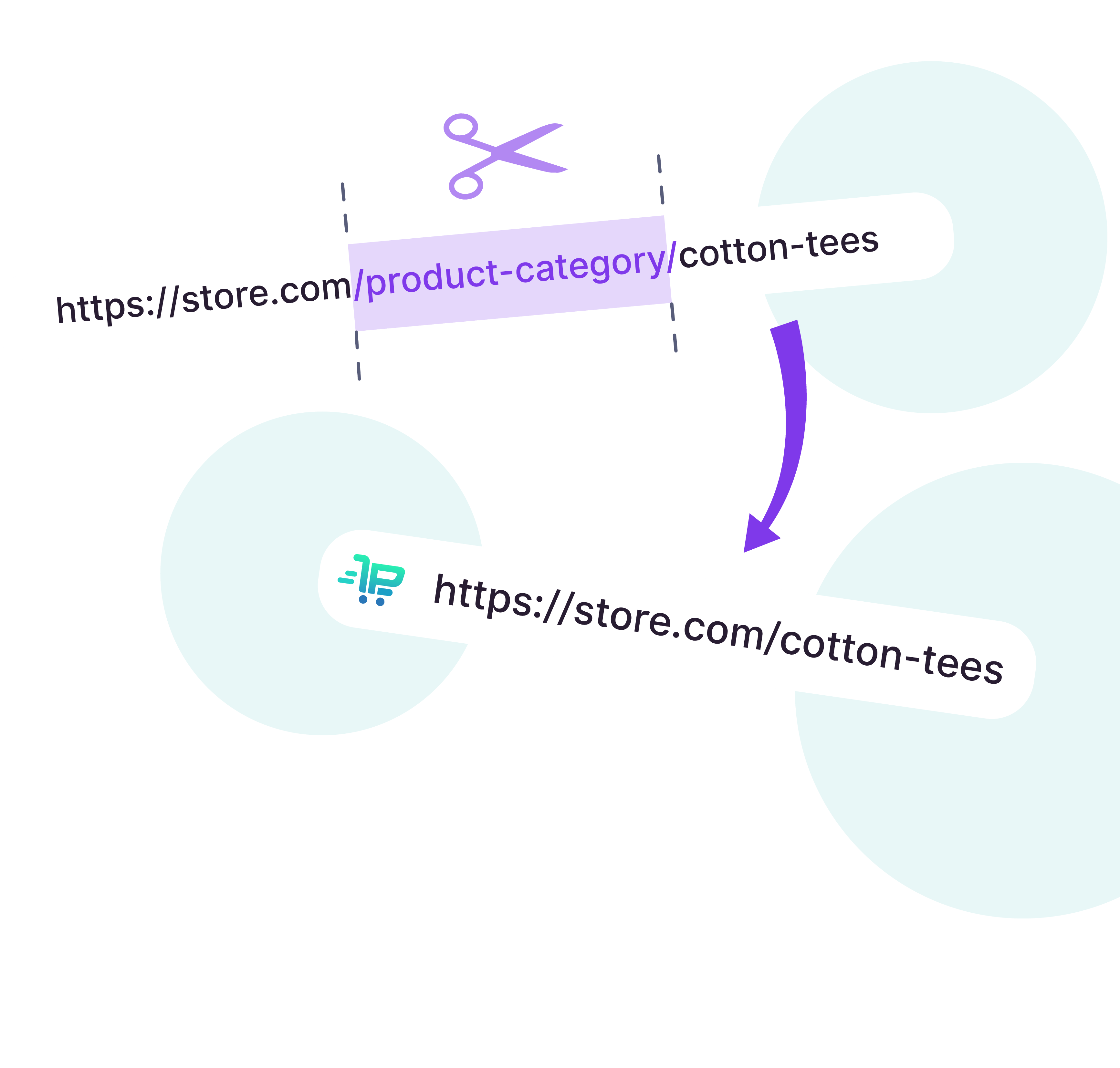
The native settings handle the basics, but they hit a ceiling on a real store. WooCommerce won’t let you remove the /product/ and /product-category/ bases entirely — there always has to be some text there. Editing bases one by one is fine for a handful of URLs, but it doesn’t scale to a catalog of thousands, and it doesn’t set up the 301 redirects you need so existing links keep working after a change.
That’s the gap a dedicated plugin fills: full control over the WooCommerce URL structure, bulk changes across the whole catalog, and automatic redirects handled for you. For a WooCommerce store, that job goes to WooCommerce Permalink Manager.
WooCommerce Permalink Manager: The best pick for WooCommerce stores
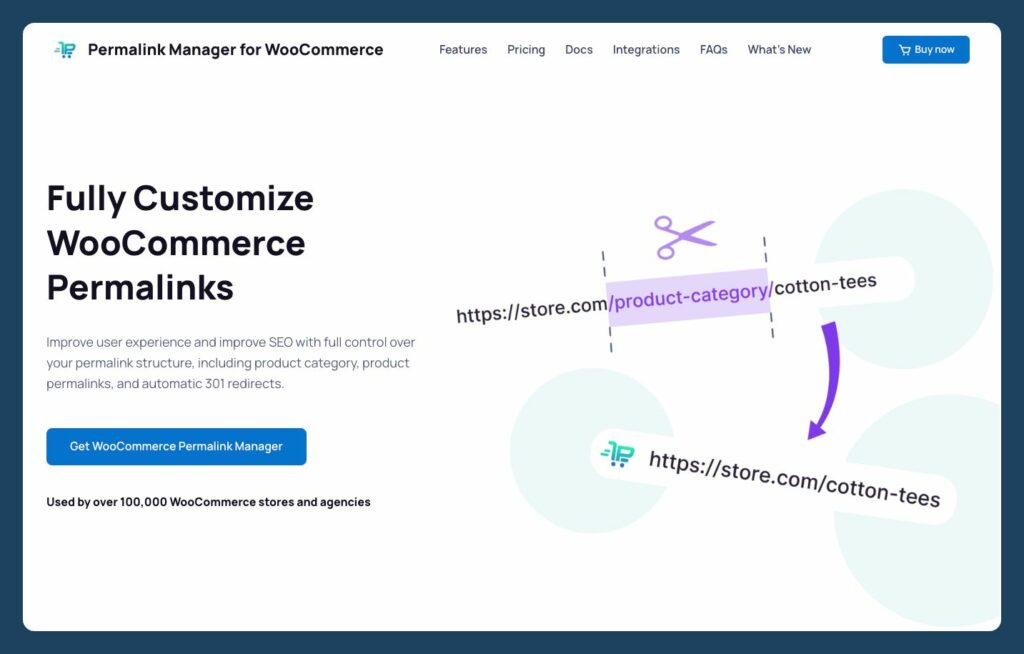
WooCommerce Permalink Manager is the custom permalink plugin built specifically for WooCommerce stores. This custom permalink plugin lets you customize all aspects of your WooCommerce permalinks. You can:
- Remove the /product-category/ and /product-tag/ permalink bases.
- Remove /product/ from individual product page URLs
- Edit any part of your eCommerce store’s permalink
- Replace the product slug with the product SKU
- Set automatic 301 permanent redirects from old URLs to new URLs or use rel=”canonical” and keep both pages, but tell Google to prioritize the new URL
WooCommerce Permalink Manager works flawlessly with WooCommerce at scale, including stores with 100k+ products. It supports translation for multilingual permalinks through WPML and Polylang.
WooCommerce Permalink Manager helps you get the best permalink structure for WooCommerce. For example, you can make changes to URL structures such that:
- Wach product just has the product slug: /product/
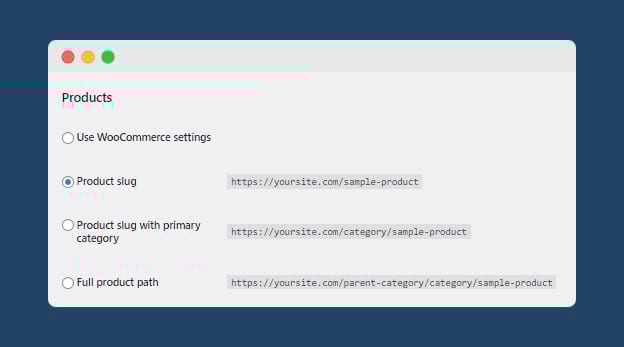
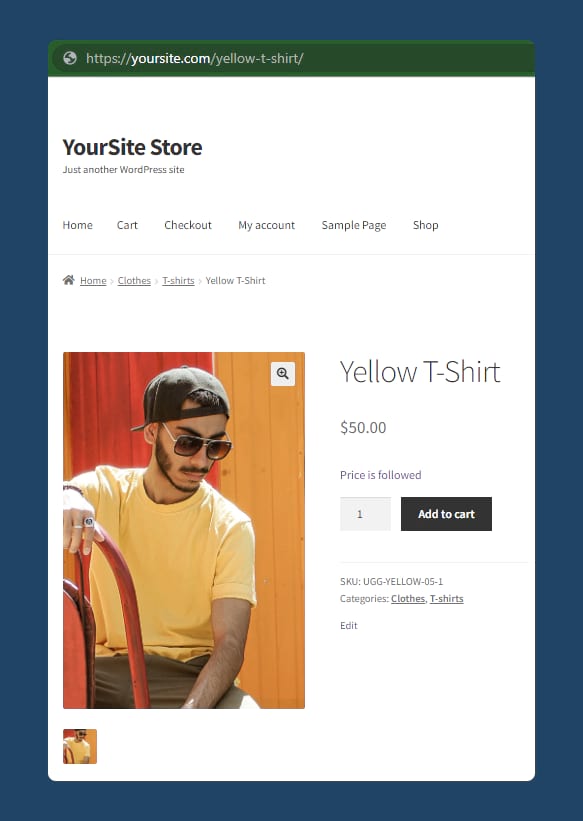
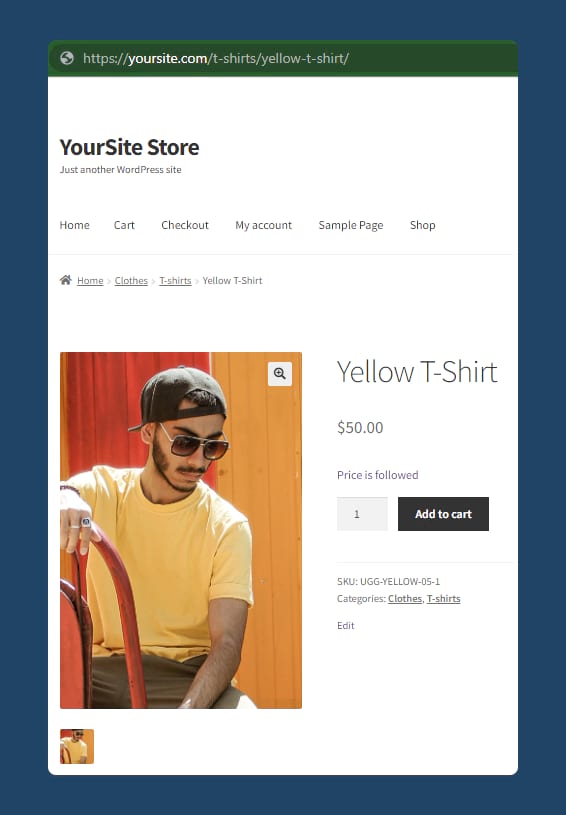
- Each product has the product and main category slug: /product-category/product/
- Each product has the product and category hierarchy: /product-category/category-parent/category-child/product/
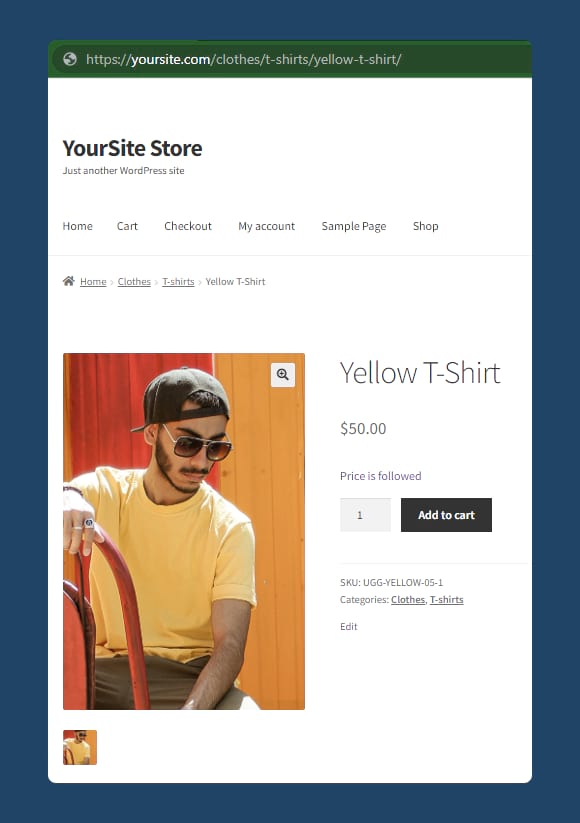
- Each product category just has the category slug: /product-category/
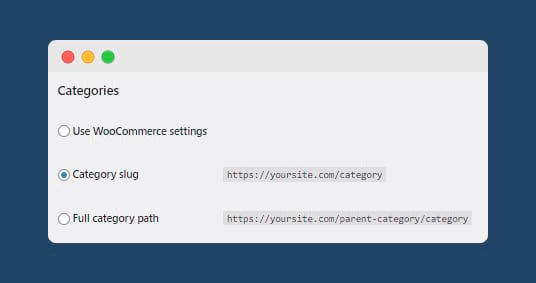
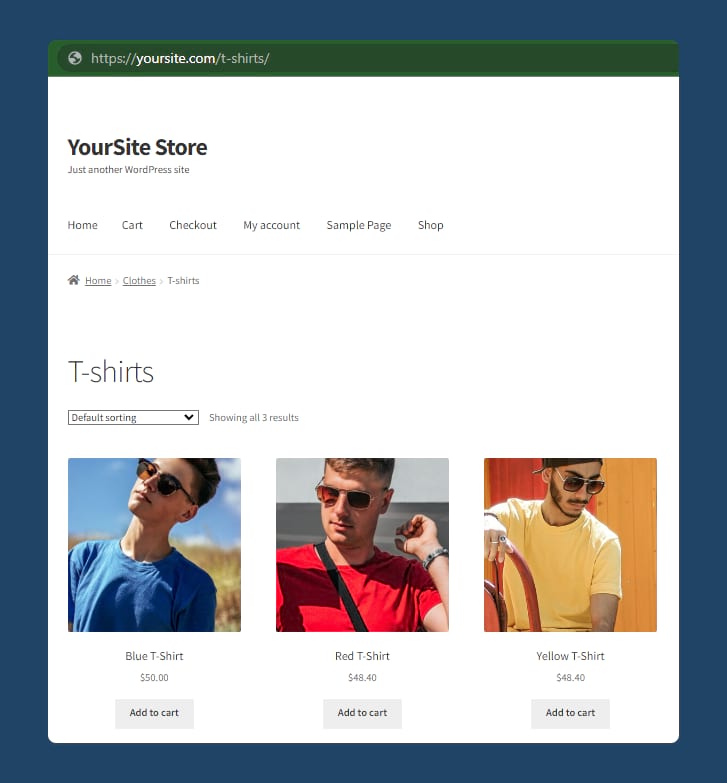
The solution is easy to use. Customers say you can “just set it and forget it”. You can use the plugin safely for your WooCommerce store as it is compatible with all the top plugins and themes.
Why should you use custom permalinks in WordPress?
WordPress’s default permalinks are fine for most general situations. Using custom permalinks simply for the sake of it doesn’t serve any SEO purpose for business websites or personal blogs. It’s worth noting Google’s recommendation on the URL structure in the context of SEO.
John Mueller from Google says that URL length doesn’t matter and that they’re used primarily as identifiers. However, Mueller also says that URLs should be clean and simple. There’s not a ranking advantage to creating simple URLs, rather, the approach is advised for its UX benefits. In Mueller’s words, “If we find a shorter and clearer URL, our systems tend to select that one.”
Large or complex WordPress sites or WooCommerce stores may want to use custom permalinks for these benefits:
- It’s easier to read and share a short URL: This is better understood with an example. See the WooCommerce category URL from a real site:
https://offermanwoodshop.com/product-category/hearth/seating/
The presence of /product-category/ in the URL makes it look worse and read less well. A better permalink would be:
https://offermanwoodshop.com/hearth/seating/
- It’s easier for customers to read short URLs: Descriptive custom permalinks make it obvious to the recipient what they’re clicking on. More trustworthy links are 34% more clickable!
- Twitter truncates URLs to 23 characters: If you were sharing the URL https://dogtv.com/product-category/toys/, all a reader would see on Twitter is
https://dogtv.com/produ. If dogtv.com had used WooCommerce Permalink Manager, they could have seen the much more helpfulhttps://dogtv.com/toys/!
The best custom permalink plugin for WooCommerce
If you want to customize the permalinks for your WordPress site or WooCommerce store beyond the default functionality of either platform, it is important that you choose the best custom permalink WordPress plugin. We have explored the best options for both WordPress sites and WooCommerce stores.
For WooCommerce and eCommerce stores, WooCommerce Permalink Manager is the best custom permalink plugin. If you want to create custom permalinks for your WooCommerce store, this plugin is a reliable solution for a store of any size, backed by good documentation and support.
It scales cleanly to stores with 100,000+ products, supports multilingual URLs through WPML and Polylang, and handles 301 redirects and canonical tags automatically so you never lose a link when you change a URL.
WooCommerce Permalink Manager is available at different price plans based on the number of websites it will be used for. Try the plugin to further improve your site’s SEO and user experience.
FAQs
How do I customize my permalink in WordPress?
Go to Settings > Permalinks to set the site-wide URL structure — most sites use the Post name option, /%postname%/. For control over individual product or category URLs, or to remove WooCommerce bases, use a custom permalink plugin.
What is the best permalink structure for WordPress?
For most sites, the Post name structure (/%postname%/) is best — it’s short, readable, and keyword-friendly. If you run a WooCommerce store, see our guide to the best permalink structure for WooCommerce.
How do I change woocommerce product permalinks?
WooCommerce lets you edit the product and category bases under Settings > Permalinks, but it won’t let you remove them entirely. To remove the /product/ and /product-category/ bases and set up automatic redirects, use WooCommerce Permalink Manager.
Premmerce Permalink Manager for WooCommerce
Get started controlling your WooCommerce product permalinks to increase site usability and SEO performance.
Comments

Ready to Get Started?
Join over 100,000 smart shop owners who use Premmerce plugins to power their WooCommerce stores.
Get started