 Premmerce
 How to Filter WooCommerce Products by Attribute (3 Methods)
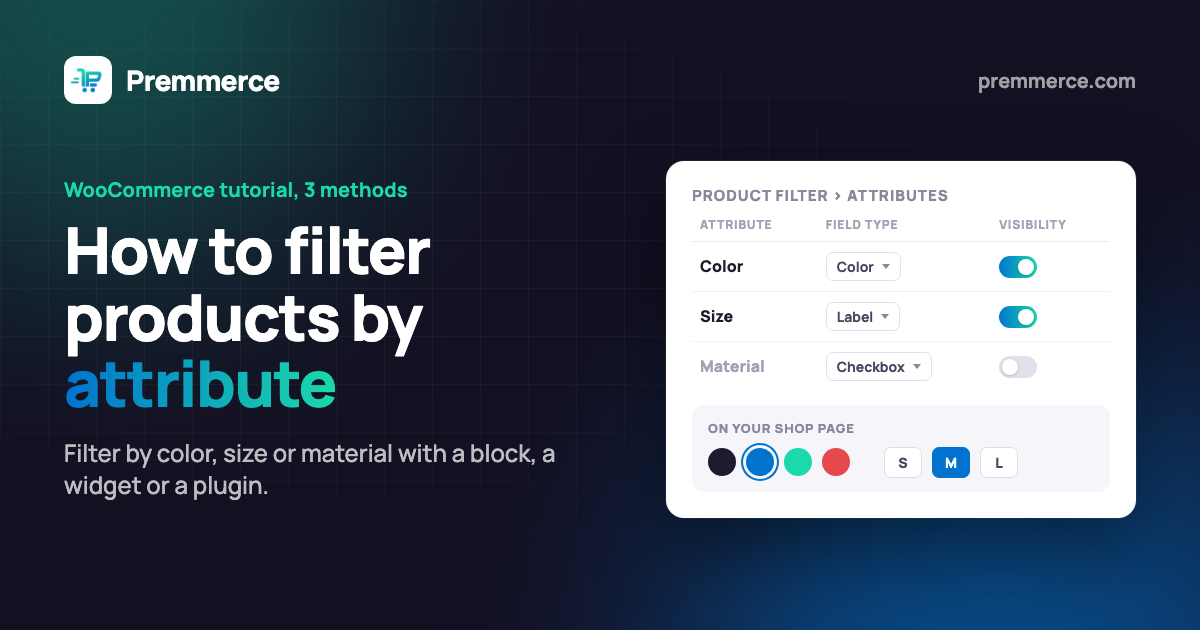
There are three ways to filter WooCommerce products by attribute:
- The native Filter by Attribute block (for block-editor shops)
- The Filter Products by Attribute widget (for classic-theme shops with sidebars)
- A dedicated WooCommerce product filter plugin when you need more control.
This guide covers all three, so you can choose the right approach for your setup.
Attribute filters help shoppers narrow a large catalog quickly and find what they want – which is good for navigation, SEO, and conversions alike. Here’s how each method works.
Method 1. How to filter by attribute using the WooCommerce block
WooCommerce includes a native “Filter by Attribute” block for shops built with the block editor. Here’s how to add it:
- Open your shop page (or any page with a product grid) in the WordPress block editor.
- Click the + icon to add a new block and search for “Filter by Attribute”.
- Select the attribute you want to filter by (e.g. Color, Size) from the block settings panel on the right.
- Choose your display style – dropdown, list, or checkbox – then click Update to save.
Note: The block method works with the WooCommerce Products block. It won’t work with classic shortcode-based product listings.
Method 2. How to filter by attribute using the WooCommerce widget
If your shop uses a classic theme with widget areas, WooCommerce includes a built-in “Filter Products by Attribute” widget.
- Go to Appearance > Widgets in your WordPress dashboard.
- Find the “Filter Products by Attribute” widget in the list.
- Drag it into your Shop Sidebar (or the widget area shown on product archive pages).
- Set the attribute to filter by, choose the query type (AND/OR), and select a display style.
- Save the widget, then visit your shop page to confirm the filter appears.
Note: This method requires a classic theme with a sidebar widget area. Block themes use the block method above instead.
Method 3. How to filter by attribute using a plugin (advanced filtering)
The native block and widget cover single-attribute filtering. For multi-attribute filtering, AJAX results that update without a page reload, custom layouts, or filtering by price, rating, and stock alongside attributes, a dedicated plugin gives you far more control.
The WooCommerce Product Filter plugin is built for this – it adds instant AJAX filtering, color swatches, and SEO-friendly filter landing pages without slowing your store.
Here’s a quick look at its key features:
- Custom filters: You can create filters relevant to your product, choosing from a number of filter options, including price, color, category, tags, rating, stock availability, and more.
- Fast filtering: The plugin uses AJAX to filter your product catalog so that users don’t have to reload the page every time they make a filter selection. It is, therefore, much faster than other plugins that use forms, which have to be submitted every time a selection is made.
- Bulk generation of SEO-friendly pages: WooCommerce Product Filter enables you to generate separate landing pages for each filter selection, which helps to improve the discoverability of your site. To take this to the next level, you can pair WooCommerce Product Filter with WooCommerce Permalink Manager, also from Premmerce, to optimize the URL structure for each filter, improving their shareability and making them more intuitive to understand. This, in turn, can encourage Google to rank those pages higher than others, giving brand visibility and organic traffic a boost.
- Single widget for all filters: You can display all of your product filters using a single sidebar filter widget. This helps customers select their preferred WooCommerce filters by attribute, hide the ones they don’t want, and modify selections conveniently.
Premmerce Product Filter for WooCommerce
Get started giving your customers a better way to filter your products to increase site usability and revenue.
After purchasing WooCommerce Product Filter, you’ll be able to access it in your Personal Account on the Premmerce website. This tutorial takes you through the steps of enabling filtering by attribute on your online store using the plugin.
Download and install the plugin
Download the plugin archive and follow the steps below:
- Log in to your WordPress dashboard and go to the ‘Add New’ page.
- Click ‘Download plugins’.
- Choose the downloaded plugin archive.
- Click ‘Install’.
- Click ‘Activate’.
- Enter the license key (you can find it in your Personal Account) and click ‘Agree & Activate License’.
Set up the attributes you want to display in the filter sidebar
It’s important that you enable WooCommerce filters by attribute relevant to your product catalog. Including a filter that doesn’t describe any product feature or excluding one that applies to a number of products in a particular category will make it harder for customers to find the products they are looking for.
To set up filters for the attributes you want customers to be able to filter by, follow these steps:
- From your WordPress dashboard, navigate to Premmerce > Product Filter
- From the ‘Attributes’ tab, you’ll see a list of all product attributes that have been set up on your WooCommerce store. To activate filters for each one, toggle the icon in the ‘Visibility’ column. Note that the plugin will automatically hide individual attributes from the filter options if they are not used for any products in your catalog.
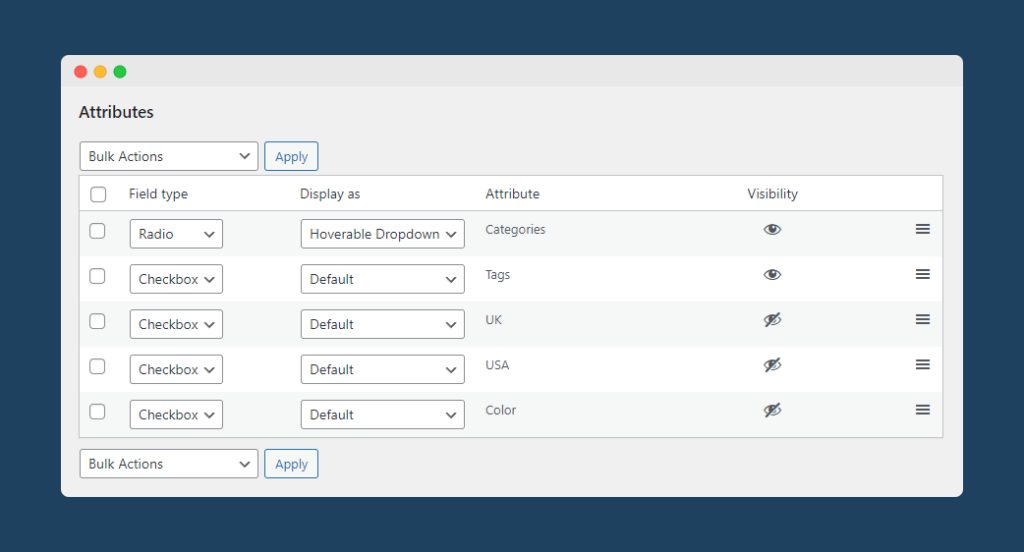
For each filter attribute, you can choose the field type – options include checkbox, radio button, color swatch, slide, and more. Simply select your preferred option from the ‘Field type’ dropdown list. The change will be saved automatically.
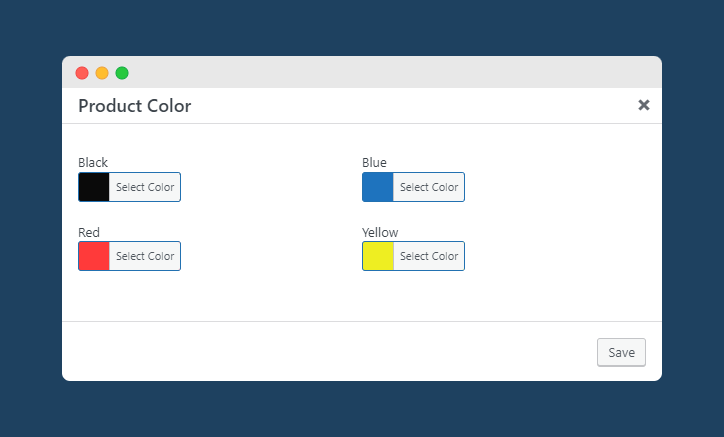
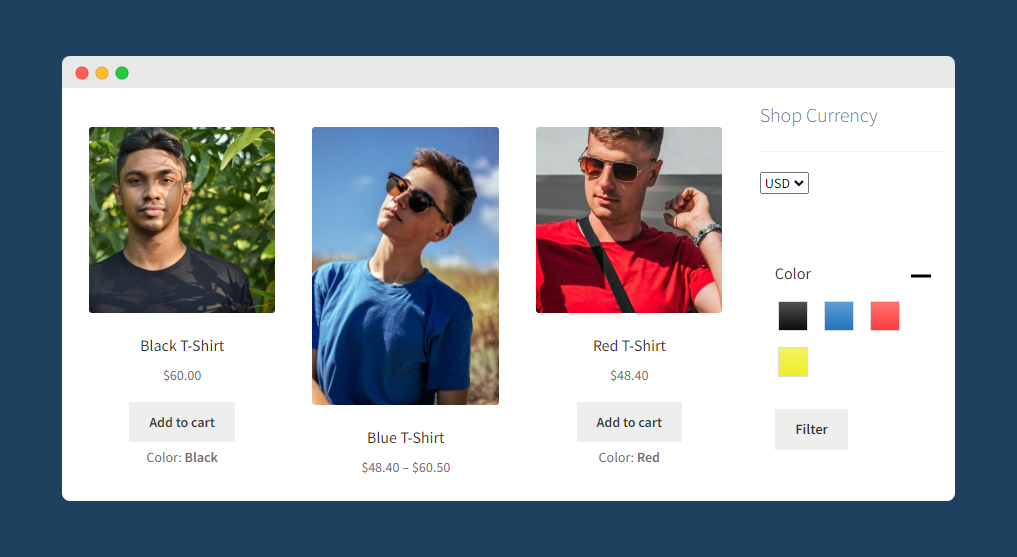
For example, let’s say you wanted to set up a color swatch filter for different colors of T-shirt on your WooCommerce store. All you would need to do is find the ‘Color’ attribute on the Attributes tab, then change the field type to ‘Color’. This will create a new button prompting you to set up how the color swatches will be displayed on your store front end, using every color option you have created for your ‘Color’ attribute.
Next, you’ll want to set up how shoppers can interact with your WooCommerce attribute filters by adjusting the options in the ‘Display as’ menu. There are five different options to choose from: Default, Dropdown, Scroll, Scroll + DropDown, and Hoverable Dropdown.
That’s it! You’ve set up your first WooCommerce attribute filter using WooCommerce Product Filter. You can make adjustments to any of your filters from the WooCommerce Product Filter dashboard at any time, either individually as described in the steps above, or by using the bulk actions list. To adjust multiple filter options in bulk, simply follow these steps:
- Select all of the filters that you want to adjust the options for by ticking the corresponding checkbox.
- Open the ‘Bulk actions’ dropdown menu and select the change you would like to make to the filter options.
- Click ‘Apply’ to apply your chosen action to all of the selected filters.
- Repeat until you have made all of the changes you would like.
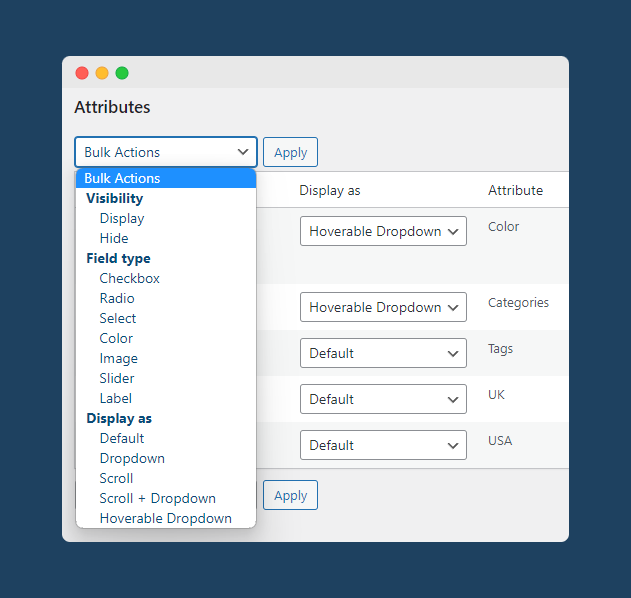
You can also adjust the order in which your filters appear on the front end of your site. Simply drag and drop your different filters using the three lines icon at the right-hand side of the list. If you need to change the order of the attribute terms in the filter, or add additional terms for your customers to filter by, you can do this by navigating to Products > Attributes and clicking ‘Configure terms’ next to the attribute you want to make adjustments to.
Examples of how attributes appear in the filter sidebar
Now that you’ve set up your attribute filters, you’ll want to check that everything appears as you intend on the front end of your WooCommerce store. Returning to the example above where we set up color swatches for the different ‘Color’ attributes available on our store, let’s take a look at how this will appear on the front end.
Filtering by attribute simplifies product search and helps conversions
Attribute-based filtering allows shoppers to filter products based on specific attributes like color, size, pattern, and other product characteristics so that they can find what they are looking for quickly. It improves your store’s user experience, SEO, and, most importantly, conversions.
WooCommerce Product Filter from Premmerce offers all the features an eCommerce store owner needs in order to add intuitive filters to their site at an affordable price. It is the best plugin to enable WooCommerce filters by attribute. Use the solution to:
- Create attribute filters aligned to your products
- Organize all filter types in a single sidebar widget
- Ensure a great experience with instant filtering powered by AJAX
- Add new attribute filters, make bulk changes, and create custom filters
- Generate SEO-friendly landing pages in bulk, and ensure they have the optimal permalink structure by integrating with WooCommerce Permalink Manager
Try WooCommerce Product Filter now to take your site’s UX to the next level and drive more conversions. The plugin is available from $69.99/year with a 30-day money-back guarantee.
Premmerce Product Filter for WooCommerce
Get started giving your customers a better way to filter your products to increase site usability and revenue.
Frequently asked questions (FAQs)
How do I filter WooCommerce products by attribute?
You can filter WooCommerce products by attribute using three methods: the native Filter by Attribute block (block-editor shops), the Filter Products by Attribute widget (classic-theme shops with sidebars), or a dedicated filter plugin for advanced filtering with multi-select, price range, and AJAX support.
What’s the difference between the block and widget methods?
The block method works with the WooCommerce Products block and block-based themes. The widget method works with classic themes that have sidebar widget areas. Both are built into WooCommerce at no extra cost. For more advanced filtering – multi-attribute, AJAX, custom layouts – a plugin gives significantly more control.
Can I filter by multiple attributes at once in WooCommerce?
The native block and widget methods support single-attribute filters only. To let shoppers filter by multiple attributes simultaneously – for example, by both Color and Size at once – you’ll need a dedicated WooCommerce filter plugin.
Do I need a plugin to add attribute filters in WooCommerce?
No. WooCommerce includes basic attribute filtering via the block and widget methods above. A plugin is recommended if you need AJAX filtering (results update without page reload), multi-attribute filtering, custom filter layouts, or filtering by price, rating, and stock status alongside attributes.
Comments

Ready to Get Started?
Join over 100,000 smart shop owners who use Premmerce plugins to power their WooCommerce stores.
Get started