 Premmerce
 How to Change Product Permalinks in WooCommerce

Want to change your WooCommerce product URLs? Product permalinks are an important part of your WooCommerce store. They help users navigate your site and find what they’re looking for quickly.
There are two possible ways to do this: Changing the slug on one product and changing the permalink structure across your whole store. This post covers both, starting with the one most people would need.
How to change a single product’s slug in WooCommerce
To change a single product’s slug in WooCommerce, edit the Permalink field in the product editor and click Update. The slug is the last part of the product’s URL, so this changes the address for that one product only.
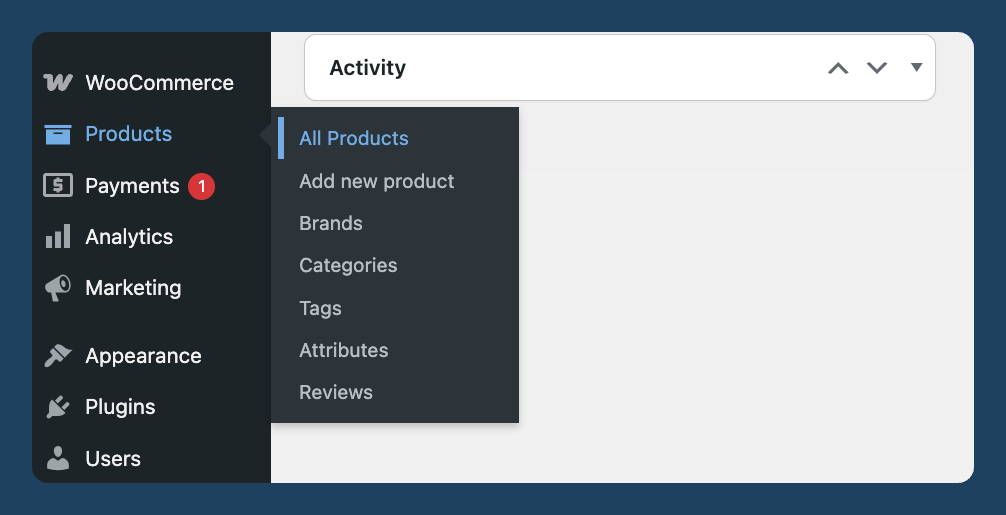
- In your WordPress dashboard, go to Products > All Products.
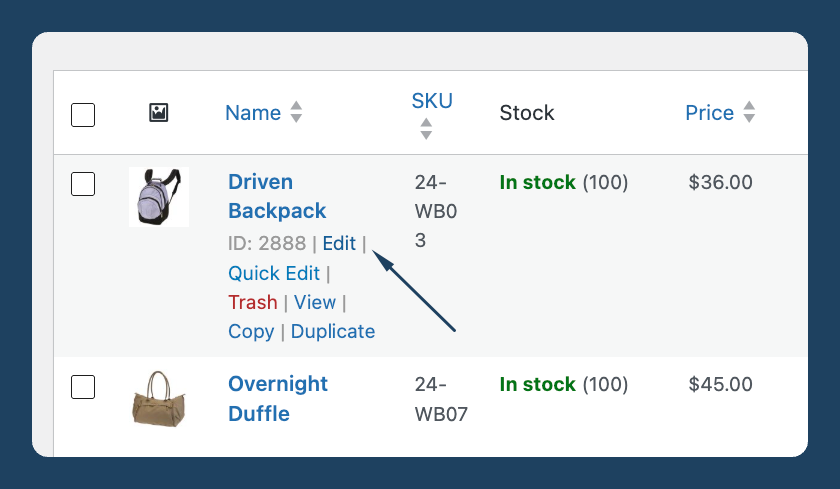
- Hover over the product you want to change and click Edit.
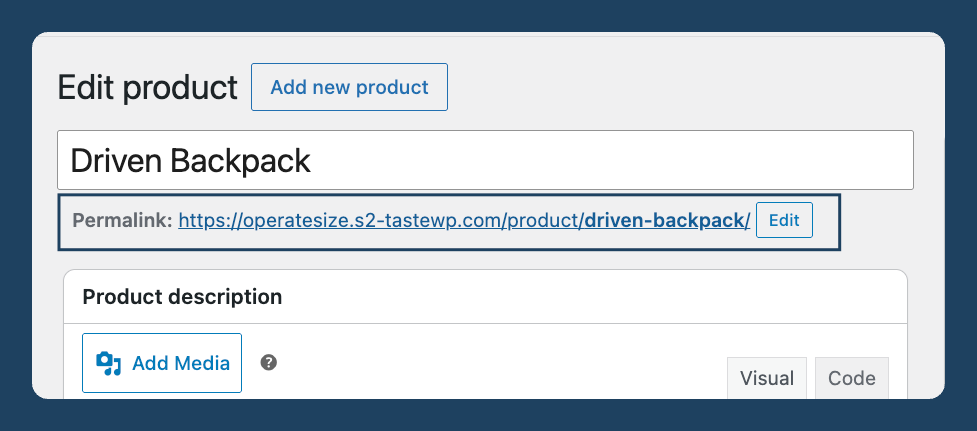
- Find the Permalink field. In the classic editor it sits directly under the product title; in the block editor, open the settings sidebar and look under Permalink > URL slug.
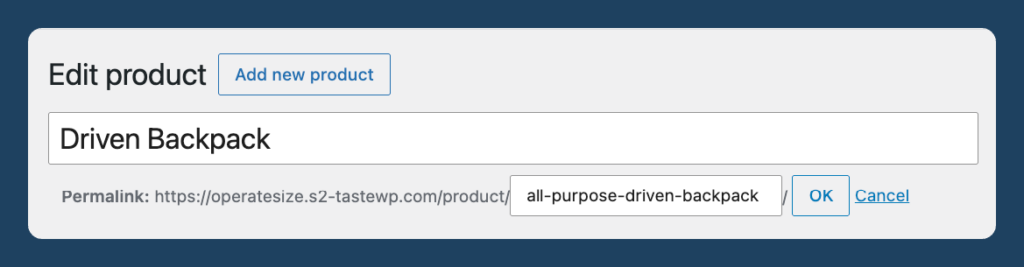
- Type your new slug. Use lowercase words separated by hyphens, and keep it to the words that describe the product.
- Click Update.
The permalink field only appears once the product has been saved as a draft or published, so save first if you’re working on a brand new product. For a quick change without opening the full editor, hover over the product in the All Products list and click “Quick Edit” instead – the Slug field is right there.
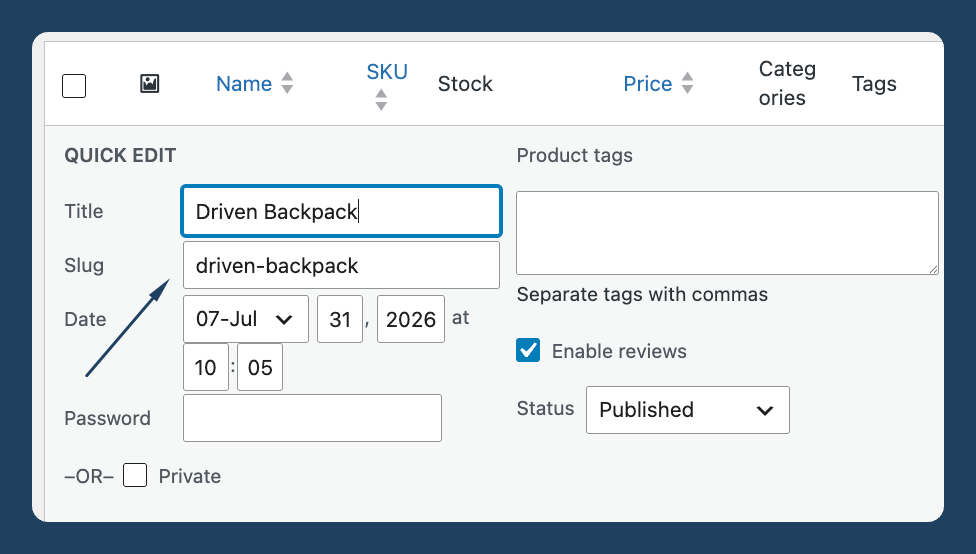
Keep slugs short and readable. “blue-cotton-tote-bag” tells a shopper what they’re about to open; “product-4471-v2” doesn’t.
Set up a redirect after you change a slug
Changing a slug changes the product’s URL, which means the old address stops working and anything linking to it – Google’s index, your own internal links, a customer’s bookmark – points at a dead page.
Set up a 301 redirect from the old URL to the new one so that traffic still lands on the product. WooCommerce Permalink Manager creates these redirects automatically for any URL its settings change; if you’re editing slugs by hand, add the redirect yourself with a redirect plugin.
How to change the product permalink structure for your whole store
There are four very limited settings under WordPress > Settings > Permalinks > Product Permalinks to select from as your permalink base for products:
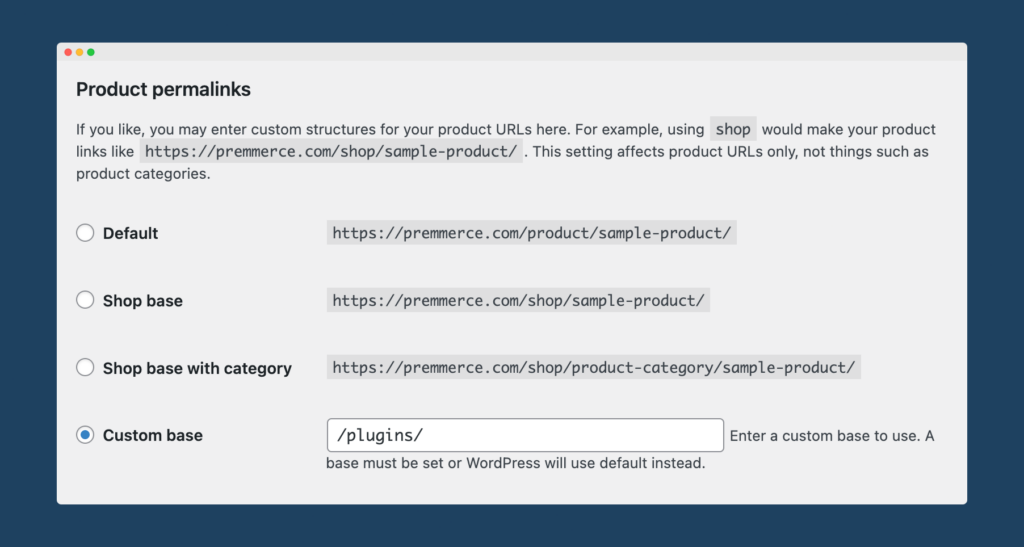
- Default: If you’re not using pretty permalinks, the Default ID-based URLs (yourdomain.com/?product=111), will be the only option available to you. If you’re using pretty permalinks, the product base will be yourdomain.com/product/product-name.
- Shop base: The shop base will use the shop page name (yourdomain.com/shop/product-name).
- Shop base with category: The shop base with category will use the shop page name first, then add the product category name (yourdomain.com/shop/product-category-name/product-name).
- Custom base: The custom base will allow you to set custom text before the product name (yourdomain.com/custom-text/product-name).
Which of these you want depends on how your catalog is organized – we’ve broken the options down in full in our guide to the best permalink structure for WooCommerce.
Default WooCommerce lets you change any of these permalinks, but it doesn’t let you remove them. There will always be something in front of the product name – you can swap /product/ for /shop/ or for custom text of your own, but you can’t strip the base out entirely. Doing so will almost certainly result in broken links and 404 error pages. The exception is if you have a totally new site.
How to create custom WooCommerce permalinks for products using a plugin
A plugin is the better solution to change your site’s product slugs as you can get the job done more easily, and rest assured that your URLs will remain functional after they’ve been changed. WooCommerce Permalink Manager is the Premmerce plugin for changing product URLs in bulk, removing the /product/ and /product-category/ bases, and keeping every old URL redirected to its new address. It’s perfect whether you want to update your site’s URLs or need to create user-friendly URLs from scratch for your new eCommerce store.
WooCommerce Permalink Manager creates better WooCommerce permalinks for products
Depending on your website’s specific needs, the plugin allows you to make the following changes:
- Remove /product/ bases from URLs entirely
- Create custom URLs for products, categories, and tags
- Ensure no broken links or 404 errors, and create automatic 301 redirects
- Add the rel=”canonical” attribute to duplicate pages
- Automatically redirect old URLs to the new URLs
- Keep the Shopify /products/ structure, when migrating to WooCommerce
- Replace the slug with the product SKU
- Choose to include the parent or child category for your permalinks
- Add a suffix to all your permalinks, such as .html; also enables breadcrumb support for your custom permalink structures.
WooCommerce Permalink Manager
Get started controlling your WooCommerce product permalinks to increase site usability and SEO performance.
How to install and set up WooCommerce Permalink Manager
Follow these steps to install the plugin:
- Purchase the Permalink Manager for WooCommerce plugin
- Download the plugin zip from your purchase email or from your account
- Go to your WordPress admin, then go to Plugins > Add New > Upload Plugin
- Click ‘Choose File’, select the ‘woo-permalink-manager-premium.zip’ file you just downloaded and click ‘Install’.
- Once uploaded, click ‘Activate’
Now that you’ve installed and set up WooCommerce Permalink Manager, let’s take a look at some of the adjustments you can make to your permalink settings.
Remove the “/product-category/” base from product URLs
The default “/product-category/” base can be removed and just the category name retained. Set it up under Premmerce > Permalink Manager > Settings.
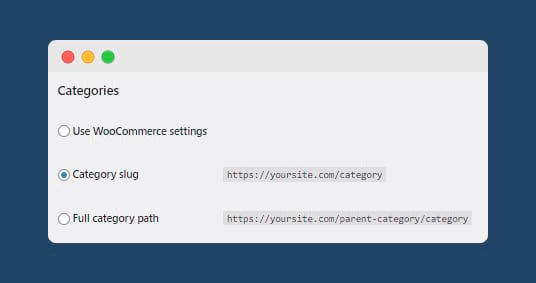
URLs are more easily understandable without the “/product-category/” prefix. Let’s take a look at this example of real-life WooCommerce store, The Biltong Factory. Their current permalink setup includes the “/product-category/” base, meaning their product category archive pages will have URLs like the following:
https://thebiltongfactory.co.uk/product-category/biltong
Using WooCommerce Permalink Manager, The Biltong Factory could remove the product category base, creating a much shorter, easier-to-read URL:
https://thebiltongfactory.co.uk/biltong
Remove product base from product URLs
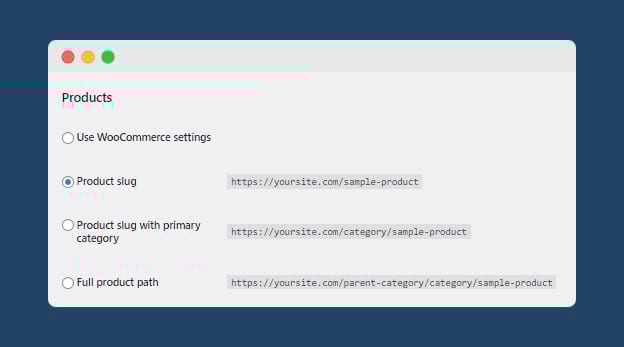
In the same way, WooCommerce Permalink Manager allows you to remove the “/product/” base from the URL. Simply set the permalink settings to ”product slug”. Returning to our example of The Biltong Factory, this would change the URL of the page for their Fresh Biltong Taster Pack product from:
https://thebiltongfactory.co.uk/product/fresh-biltong-taster-pack/
To:
https://thebiltongfactory.co.uk/fresh-biltong-taster-pack
If you want to remove the product base but retain the main category slug, you can set the URL structure to ”product slug with primary category”. To keep the entire category slug, which includes both the parent and child categories, set the URL to ”full product path”.
Default WooCommerce includes both the parent and the child category, which is where you get repetitive URLs like /stair-nosings/stair-nosings-vinyl-flooring/.
Use the product SKU in the URL
If you’re a B2B or wholesale seller, some or many of your customers are likely using your product SKUs to search for product information. Creating URLs that contain the product SKU will make it easier for retailers and business customers to navigate your inventory.
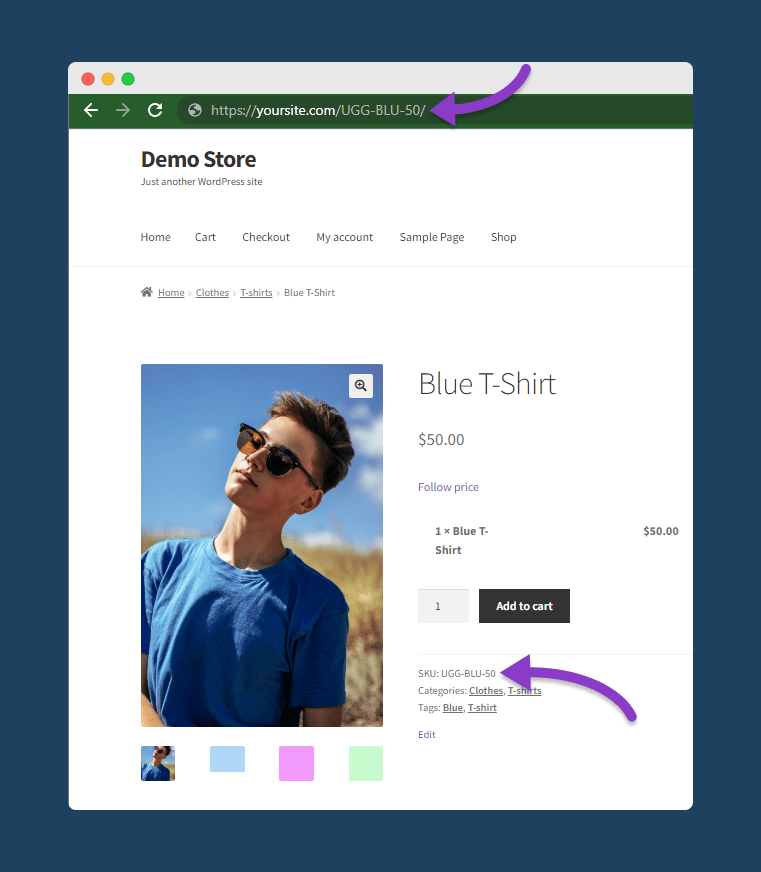
Under Premmerce > Permalink Manager > Settings > SKU, select ‘replace product slug’.
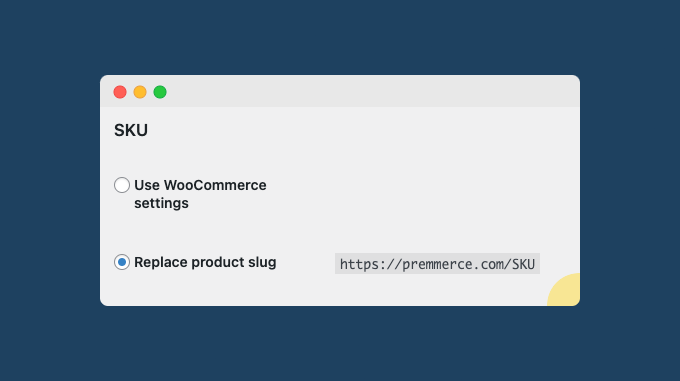
⚠️Important! SKUs aren’t always descriptive, so a URL built from one tells a shopper nothing about the product before they click. Google’s ecommerce URL guidance is explicit that readable words beat ID numbers, and recommends structures like /product/black-t-shirt-with-a-white-collar over unreadable codes. Treat SKU slugs as a niche option for wholesale and large-catalog stores whose buyers genuinely search by code, not as a default for a consumer-facing shop.
Why change WooCommerce product slugs?
Default WooCommerce permalinks are not very user-friendly or SEO-friendly:
- They’re long, and the length adds to users’ confusion. Users will have to look at the full page URL to find what they’re looking for.
- Their default structures make them less understandable at first glance, which can affect the site navigation experience.
- URL length doesn’t matter for SEO. However, it does make a difference from a user experience (UX) perspective. Shorter URLs are easier to read and share. As short and optimized URLs offer a clear idea of the page, they engender more trust and, thereby, clicks.
Here’s why you should customize your product permalinks:
- To create keyword-rich URLs that are easy to remember and share on social media.
- To create semantic URLs, which give the user an idea of what the site is before they click on them.*
- If you have a group of similar but not identical products, you can change the permalink structure for specific product types to create the necessary differentiation.
- In case you’re switching to WooCommerce from a different CMS, you can keep the same URL structure.
*Semantic URLs are concise and have a logical hierarchy. This makes it easy for users to connect the URL to the product it points to, which can increase click-through and increase the page’s exposure on social media and other websites. As link sharing is an impactful SEO tactic, your search engine rankings will benefit.
Why won’t my WooCommerce product slug change?
Here’s why this might be happening:
- There’s no Permalink field. WordPress only generates a slug once the product has been saved, so save it as a draft and the field appears under the title.
- WordPress adds “-2” to the end of your slug. Something else on the site already uses that exact slug – often an old product still sitting in the trash. Empty the trash or rename the other item, then set the slug again.
- The new URL returns a 404. The rewrite rules are stale. Go to Settings > Permalinks and click Save Changes without altering anything – that flushes them.
- The old URL still loads. That’s usually page or CDN caching, so clear both. If the old URL is quietly landing people somewhere unrelated, that’s WordPress guessing a redirect for you, which it’s not reliable at. Set an explicit 301 rather than leaving it to guess.
Improve the search experience on your site
Something as simple as changing the product slug can create easy-to-understand and certainly better-looking URLs! WooCommerce Permalink Manager from Premmerce packs everything you need to create concise and optimized URLs that make navigating your site easier and support your SEO goals. Apart from offering various options to change WooCommerce product slugs, the plugin allows you to create redirects, configure a suffix to apply to URLs, and add canonicals.
To further optimize your site’s user experience, get the Variation Swatches and WooCommerce Product Filter plugins from Premmerce, which highlight product attributes and create filtering options, respectively.
Try WooCommerce Permalink Manager with a no-risk, 30-day money-back guarantee. All other plugins from Premmerce come with the same assurance.
WooCommerce Permalink Manager
Get started controlling your WooCommerce product permalinks to increase site usability and SEO performance.
Frequently asked questions
Can you change all WooCommerce product slugs at once?
Not in default WooCommerce — the Permalink field is per-product, so a store with 500 products means 500 edits. Quick Edit speeds it up a little, but bulk slug changes need a plugin. WooCommerce Permalink Manager handles the whole catalog from one screen and redirects every old URL as it goes.
Does changing a product slug affect SEO?
Changing the slug itself doesn’t hurt your rankings, but losing the old URL does. Google has the previous address indexed, and if it returns a 404, you lose whatever that page had built up. Redirect the old URL to the new one, and the page keeps its history.
What is a product slug?
In a URL, the slug is the part that identifies the web page the URL points to. The slug appears at the end of the URL, after the site domain. For example, “woocommerce-permalink-manager” is the slug in https://premmerce.com/woocommerce-permalink-manager/.
The slug most often contains keywords related to the page, and is separated by hyphens. It’s readable by both users and search engines.
Slugs are editable. If the slugs of your product URLs can be better, i.e., do a better job of helping visitors navigate your site, you should change them. A clearer slug tells a visitor what’s on the page before they click it, and that’s the main reason to bother changing one.
What’s the default product permalink structure for WooCommerce?
There are many different types of URL structures for online shops – some better than others. The WooCommerce default permalink structure for product pages is /product/ followed by an individual product slug, for example:
https://porterandyork.com/product/buy-natural-pork-shoulder
The best type of URL structure depends on the kind of products/content you have on your site, i.e., physical products or digital downloads. For example, if most of your products have variations, then it’s best to use a structure like /product-name/variation-name/ (e.g. /iphone-xs/gold/). Your customers can easily confirm that the variation in the page URL is what they’re looking for before adding the product to their cart..
Comments

Ready to Get Started?
Join over 100,000 smart shop owners who use Premmerce plugins to power their WooCommerce stores.
Get started