 Premmerce
 WooCommerce Search by SKU: How to Set It Up (2026)

How do you search for a product in WooCommerce by its stock-keeping unit (SKU)? Out of the box, you can’t: WooCommerce’s storefront search only matches product titles and descriptions, so a shopper who types a SKU gets no results. The fix is a search plugin that indexes the SKU field, and our recommended option is WooCommerce Product Search.
In this post, we explore the reasons for adding WooCommerce search by SKU to your site and how to do it easily.
What is an SKU?
An SKU, or stock-keeping unit, is a unique identifier for each product in your inventory. Typically, SKUs provide information for each product and contain 8-12 alphanumeric characters. For example, the SKU for ugg boots from EMU, in black and size 7 could look something like this: EMU-UGG-7-SLATE.
While you’re free to name your WooCommerce SKUs as you wish, standardizing the code format for all your products makes it much easier to identify products by the SKU, which is helpful if you have a large product catalog or if you sell products with a lot of variations.
Adding meaningful information to SKUs and creating a standard SKU format can be a useful tool for simplifying product finding and inventory records. Having a standardized SKU format enables staff to do an SKU look-up to check product availability, look for a specific item, or identify mismatches between items in inventory and items sold.
Using a standardized code format also makes it much easier for customers to find your products if they are searching by SKU. Let’s take a look at some of the reasons why enabling a WooCommerce search by SKU is useful.
What are the benefits of offering search by SKU?
Enabling a WooCommerce search by SKU can be beneficial in a number of different cases:
- Searching by SKU provides customers that went through your product catalog, which also contains product SKUs, with an easier way to search for what they want by its exact brand, color, size and style.
- This is particularly efficient if you have many variations of the same product, a large product catalog, or if you sell variable products at different price points. By searching for the SKU rather than the product name, you can be sure you will immediately land on the product page you are looking for, rather than a different variation.
- WooCommerce search by SKU functionality is also useful for wholesale stores that sell the same product at different price points to wholesale or non-wholesale customers, and for stores that offer discounted prices as part of a membership scheme.
- Searching by SKU makes it easy for customers to reorder the same products over and over. For example, a B2B customer that buys certain products in bulk from you.
Enabling SKU-based search gives customers a way to find what they want quickly and improves their overall experience using your site. If you operate in the B2B space, SKU search capability can ensure quick and easy access to specific products or past purchases. This can help improve the procurement experience and also build customer loyalty. In addition, WooCommerce search by SKU may help you rank higher in Google search queries for specific product SKUs.
How to enable SKU search on the storefront
As we have seen, there are many advantages to allowing product search by partial or complete SKU numbers. Because WooCommerce doesn’t support SKU search on the storefront, you have two options: Add the functionality with custom code, or use a plugin.
Custom code vs a search plugin
The code route means editing WooCommerce’s search query – typically a function in your theme’s functions.php that tells the query to include the _sku meta field. It works, but it’s the harder, riskier path: A small mistake can break search or take the site down, and the snippet needs re-testing every time WooCommerce or your theme updates.
A plugin avoids all of that. It’s far less work, there’s no risk of crashing your site, and it keeps working through updates. Our recommended way to set up searching by SKU is Premmerce’s WooCommerce Product Search plugin.
What makes WooCommerce Product Search the best WooCommerce search by SKU plugin?
Online buyers use different types of search queries to find products quickly, including searching by SKU. WooCommerce Product Search works natively with the WooCommerce search widget. As well as enabling WooCommerce search by SKU, it also offers other useful features such as:
- Spelling correction, similar word search, and autocomplete as you type – all of these are especially helpful if your customer doesn’t know (or can’t spell) the product name.
- Advanced live search field showing the product image, price, and add-to-cart links in live search results, meaning your customers don’t need to navigate to the product page to check they have found the correct product, or even to add it to their cart.
- Advanced features like instant results without the need for page refresh, and filtering that lets shoppers narrow live results by price, attribute, or category.
The WooCommerce plugin has an easy-to-use interface, so non-technical users should be able to easily install, configure and manage it. Once you’ve installed WooCommerce Product Search, you can set up searches based on SKU, and configure the plugin for spell check, similar words, and a custom live search.ch.
Premmerce Product Search for WooCommerce
Get started giving your customers a better way to search your products to increase site usability and revenue.

How to set up searching by SKU with WooCommerce Product Search
- Buy, download and install WooCommerce Product Search.
- On your WordPress dashboard, go to Premmerce > Search settings.
- Under ‘Additional fields for search’, check ‘Products SKU’. This will enable WooCommerce search by SKU. If a product is variable, its variation SKUs are matched too.

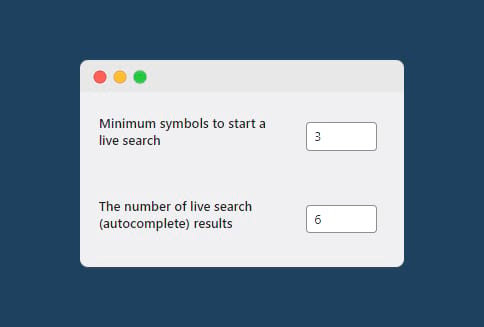
- Set the minimum number of symbols that site visitors must type to trigger a live search. Also set the number of autocomplete results you want displayed for each search.
- To help visitors search quickly and correctly, you can choose from custom fields such as product image and price to add to autocomplete searches in the search form. In addition, you can display the product’s add-to-cart button to give an option for direct purchase.

Say you’ve assigned UGG-BLU-05 to a blue T-shirt in your catalog (how this would appear on your site’s backend is shown below), and enabled WooCommerce search by SKU, and product image in autocomplete search.
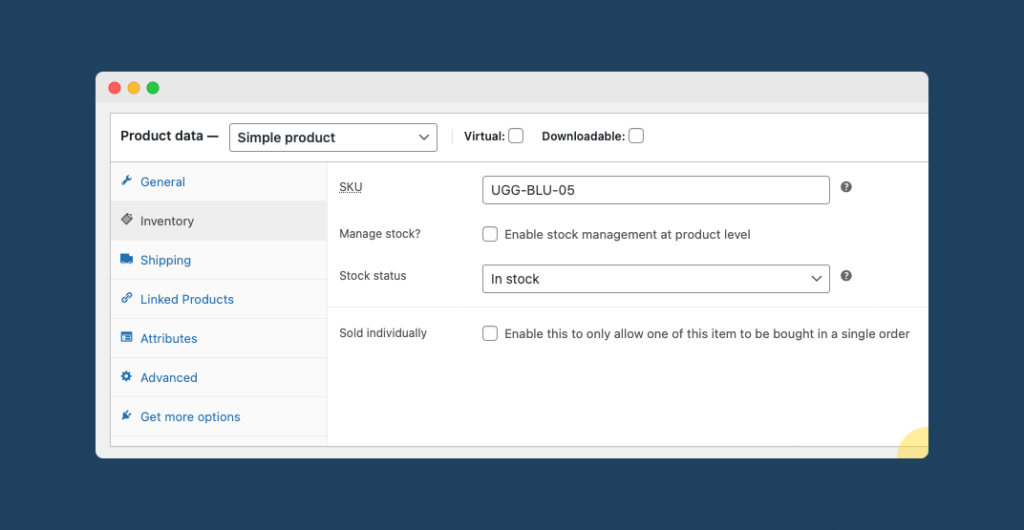
Searching by this SKU on your site will display the corresponding product along with the product image and description in the search box.

If you’re using the WooCommerce Permalink Manager plugin, also from Premmerce, you can replace your product permalinks with the product SKU automatically. The main use case for this would be wholesale stores with a vast array of products. As the SKU is the primary identifier in most wholesale stores’ physical catalog, wholesale store owners who sell online through WooCommerce will usually prefer to keep the SKU as a primary identifier in their online store. Google advises against SKU-based URLs as a default, so keep this for wholesale stores or very large catalogs where the SKU really is the primary identifier.
Replacing the product permalink with the SKU is very straightforward. Simply go to the WooCommerce Permalink Manager settings and check ‘Replace product slug’ under ‘SKU’.

This will customize the permalinks automatically, with automatic 301 redirects from the old permalinks to the new ones.

Troubleshooting SKU search
If a SKU doesn’t return its product after you’ve enabled SKU search, the fix is almost always the index. WooCommerce Product Search builds its results from a search index, so newly added products or changed SKUs won’t appear until it’s refreshed. Go to the Premmerce Search settings page and click Update indexes.
It’s also worth knowing that SKU matching is exact: The additional-fields search looks for a 100% match on the SKU, with no spelling correction, so a partial or mistyped SKU won’t surface the product.
Search by SKU in the WooCommerce admin
Storefront search is only half the picture. Store staff often need to find a product, or an order, by its SKU from the WordPress dashboard, and that works differently from customer-facing search.
The native WooCommerce product list does match SKUs. Go to Products in your dashboard, type a SKU into the search box, and WooCommerce returns products whose main (parent) SKU matches.
However, that’s still incomplete. Variation-level SKUs aren’t surfaced in the product list, and there’s no built-in way to search orders by SKU – the Orders screen searches customer and order details, not line-item SKUs. Closing those gaps needs a dedicated admin filter or extension.
- A management tool like Smart Manager gives you a spreadsheet-style view of the dashboard where you can search and filter both products and orders by SKU, including variation SKUs, from one screen.
- A free inventory plugin such as ATUM does much the same for stock, surfacing SKUs across products and variations so you can find and edit them without opening each product.
Tips for creating a better search experience
SKU search is one piece of a good on-site search experience. A couple of quick wins do the most for shoppers:
- Turn on filters so customers can narrow results by price, attribute, or category.
- Enable instant results that appear as customers type, so they aren’t clicking through pages to find a product.
Both come built into WooCommerce Product Search, so you can switch them on alongside SKU search.
Enable WooCommerce search by SKU and boost the search experience
SKUs are integral to inventory management. But they can also be a useful way for customers to search for your products. Model numbers are among the multiple search queries online buyers use during their product search.
WooCommerce search by SKU makes it easier to search for products if you have many variations on the same product, a large product catalog, or the same product available for different price points, for example as part of membership deals or wholesale-only deals.
You can easily enable SKU search functionality using WooCommerce Product Search. The plugin offers a lot of flexibility to help buyers search effectively. Its advanced features allow you to shape the search process for a great user experience:
- Easy to use even for non-technical WooCommerce store owners, and works with the native WooCommerce search widget.
- Customize the minimum number of symbols to start a live search and the number of autocomplete results shown.
- Intelligent searching functions such as spelling correction, similar word search, and autocomplete as you type, transliterated words, and words with the same pronunciation.
- Advanced features like instant results without page refresh and a live search function where you can show images, prices, and add-to-cart links in live search results to boost search speed.
- Apart from the search by SKU option, the plugin also allows visitors to search for a product by its short description.
- Compatible with Divi, Elementor, OceanWP, Avada, and Astra.
A good product search experience is vital to keep visitors on your site longer, which can contribute to conversions and sales. A live search that shows the product image and price, and filters that narrow and customize search results, are facets of an engaging and efficient search experience. It’s also worth adding SKU-based search to give buyers an additional way to find products. Adding SKUs and suggestions broadens search options and aids product discovery for visitors interested in viewing variations of a product.
Provide high-quality searches with WooCommerce Product Search, which is in use by over 7,000 WooCommerce store owners. Optimizing your site search doesn’t get easier or better! Have a look at the full list of features and plans.
Frequently Asked Questions
Can WooCommerce search by SKU without a plugin?
On the storefront, no – WooCommerce’s built-in search only matches titles and descriptions, so shoppers can’t find products by SKU out of the box. In the admin, the product list does match parent SKUs. To let customers search by SKU, you need a search plugin such as WooCommerce Product Search.
Is there a free way to search by SKU?
You can add the functionality with custom code by editing WooCommerce’s search query to include the SKU field, but it’s fiddly and easy to break on updates. For a reliable setup without code, WooCommerce Product Search handles storefront SKU search and keeps working as your catalog grows.
Can customers search by SKU on the storefront?
Yes, once you enable it. WooCommerce Product Search adds SKU matching to the live search bar, so a customer typing a full SKU sees the exact product, including variation SKUs, with an image, price, and add-to-cart link.
Premmerce Product Search for WooCommerce
Get started giving your customers a better way to search your products to increase site usability and revenue.
Comments

Ready to Get Started?
Join over 100,000 smart shop owners who use Premmerce plugins to power their WooCommerce stores.
Get started